Tuesday, 22 September 2015

Re: [HM:258127] Creating Simple Check List in Excel

Eed Mubarak

On Sep 21, 2015 11:24 AM, "Junaid Tahir" <mjunaidtahir@gmail.com> wrote:


​

Here is the Simple Checklist in PowerPoint you'll learn to create:

Simple Checklist PowerPoint TutorialSince checklists are quite common in a business presentation, you will find this tutorial to be quite relevant to your needs. You can also use this checklist tutorial to create…

  1. Agenda slides
  2. Summary Slides
  3. Quiz or
  4. Any numbered list

(Huh! There you see the different uses of a numbered list) Let us learn the steps right away.

Step 1: Create the boxes

Go to Auto shapes menu and pick the rounded rectangle tool. Move the yellow handle on the top edge towards the centre to increase the curvature as shown below:

Rounded rectangle for checklist Make as many copies of the rounded rectangle using 'Ctrl+C' and 'Ctrl+V' option:

Copies of the rounded rectangle Place the last rectangle at the position where you want the list to end. These rectangles will act as text placeholders.

Go to Arrange -> Align -> Align Vertically. Once again go to Arrange -> Distribute -> Distribute Vertically. You will get the following result:

Arrange Text boxesRelated: Elegant PowerPoint Calendar

The boxes for the list are ready. The next step is to…

Step 2: Add circle placeholders

Go to Auto shapes menu and pick the oval tool. Hold the 'Shift' tab to create a perfect circle. Stick the circles to the left edge of the rounded rectangle boxes. The circles will serve as place holders for the numbered list.

Add Number placeholders to checklistRelated: Get from Boring Lists to Smart Graphics

Step 3: Add the finishing touches

You can apply the quick style of your choice to make your PowerPoint checklist and placeholders look visually interesting.

Quick style to create checklist in PowerPoint When you enter relevant text you get the completed checklist PowerPoint template as follows:

Completed checklist PowerPoint You can alter the type of quick style you use to create variations of the template as shown below:

Checklist Template Variation You can always expand or reduce the list to suit your specific needs.

Smarter option for business presenters:

It takes a lot of time and effort to create professional looking graphics and diagrams. Most business presenters don't have the time to create such high quality graphics for themselves. That is why we came up with our 'PowerPoint Charts CEO Bundle with 2 Volumes of templates'. Here are some example checklist templates taken from the bundle:

Here is a simple checked list from PowerPoint CEO Pack 1:

PowerPoint Checklist from CEO Pack 1 There can be more variations created of the same diagram with where you highlight the point being discussed. Here is a creative template from checklist section of CEO Pack 1:

PowerPoint checklist from CEO pack 1Browse PowerPoint charts and Diagrams CEO Pack 1You can also use autoshapes, gradients and rounded text boxes to create a stunning template like this:

2 text boxes list from PowerPoint Graphics and Concepts CEO pack 2

Here is a tag style unique template also created in PowerPoint and taken from Bullet Points Alternative section of PowerPoint Graphics CEO Pack 2:

Unique numbered lists from PowerPoint Graphics CEO pack 2

--
--
We are also on Face Book, Click on Like to jois us
FB Page: https://www.facebook.com/pages/Hyderabad-Masti/335077553211328
FB Group: https://www.facebook.com/groups/hydmasti/
 
https://groups.google.com/d/msg/hyd-masti/GO9LYiFoudM/TKqvCCq2EbMJ

---
You received this message because you are subscribed to the Google Groups "Hyderabad Masti" group.
To unsubscribe from this group and stop receiving emails from it, send an email to hyd-masti+unsubscribe@googlegroups.com.
For more options, visit https://groups.google.com/d/optout.

--
--
We are also on Face Book, Click on Like to jois us
FB Page: https://www.facebook.com/pages/Hyderabad-Masti/335077553211328
FB Group: https://www.facebook.com/groups/hydmasti/
 
https://groups.google.com/d/msg/hyd-masti/GO9LYiFoudM/TKqvCCq2EbMJ

---
You received this message because you are subscribed to the Google Groups "Hyderabad Masti" group.
To unsubscribe from this group and stop receiving emails from it, send an email to hyd-masti+unsubscribe@googlegroups.com.
For more options, visit https://groups.google.com/d/optout.

Monday, 21 September 2015

[HM:258108] Video showing Indian worker being beaten goes viral

Riyadh: A viral video uploaded on YouTube showed a man described as a "Saudi engineer" beating up the worker engaged in the expansion work on the Grand Mosque in Makkah. In the two-minute-long video, the worker is heard pleading for mercy, but the assailant continues to kick and hit him. The assaulter also spits on the Indian worker after repeatedly slapping him. The video was shared by Canadian journalist Tarek Fatah on his Facebook page with the caption: "Saudis beat an Indian to pulp. Are we surprised then when a Saudi diplomat rapes Indian and Nepalese woman in Delhi as a matter of his right?"

http://goo.gl/ziCSQX

--
--
We are also on Face Book, Click on Like to jois us
FB Page: https://www.facebook.com/pages/Hyderabad-Masti/335077553211328
FB Group: https://www.facebook.com/groups/hydmasti/
 
https://groups.google.com/d/msg/hyd-masti/GO9LYiFoudM/TKqvCCq2EbMJ

---
You received this message because you are subscribed to the Google Groups "Hyderabad Masti" group.
To unsubscribe from this group and stop receiving emails from it, send an email to hyd-masti+unsubscribe@googlegroups.com.
For more options, visit https://groups.google.com/d/optout.

Sunday, 20 September 2015

[HM:258106] Creating Simple Check List in Excel


​

Here is the Simple Checklist in PowerPoint you'll learn to create:

Simple Checklist PowerPoint TutorialSince checklists are quite common in a business presentation, you will find this tutorial to be quite relevant to your needs. You can also use this checklist tutorial to create…

  1. Agenda slides
  2. Summary Slides
  3. Quiz or
  4. Any numbered list

(Huh! There you see the different uses of a numbered list) Let us learn the steps right away.

Step 1: Create the boxes

Go to Auto shapes menu and pick the rounded rectangle tool. Move the yellow handle on the top edge towards the centre to increase the curvature as shown below:

Rounded rectangle for checklist Make as many copies of the rounded rectangle using 'Ctrl+C' and 'Ctrl+V' option:

Copies of the rounded rectangle Place the last rectangle at the position where you want the list to end. These rectangles will act as text placeholders.

Go to Arrange -> Align -> Align Vertically. Once again go to Arrange -> Distribute -> Distribute Vertically. You will get the following result:

Arrange Text boxesRelated: Elegant PowerPoint Calendar

The boxes for the list are ready. The next step is to…

Step 2: Add circle placeholders

Go to Auto shapes menu and pick the oval tool. Hold the 'Shift' tab to create a perfect circle. Stick the circles to the left edge of the rounded rectangle boxes. The circles will serve as place holders for the numbered list.

Add Number placeholders to checklistRelated: Get from Boring Lists to Smart Graphics

Step 3: Add the finishing touches

You can apply the quick style of your choice to make your PowerPoint checklist and placeholders look visually interesting.

Quick style to create checklist in PowerPoint When you enter relevant text you get the completed checklist PowerPoint template as follows:

Completed checklist PowerPoint You can alter the type of quick style you use to create variations of the template as shown below:

Checklist Template Variation You can always expand or reduce the list to suit your specific needs.

Smarter option for business presenters:

It takes a lot of time and effort to create professional looking graphics and diagrams. Most business presenters don't have the time to create such high quality graphics for themselves. That is why we came up with our 'PowerPoint Charts CEO Bundle with 2 Volumes of templates'. Here are some example checklist templates taken from the bundle:

Here is a simple checked list from PowerPoint CEO Pack 1:

PowerPoint Checklist from CEO Pack 1 There can be more variations created of the same diagram with where you highlight the point being discussed. Here is a creative template from checklist section of CEO Pack 1:

PowerPoint checklist from CEO pack 1Browse PowerPoint charts and Diagrams CEO Pack 1You can also use autoshapes, gradients and rounded text boxes to create a stunning template like this:

2 text boxes list from PowerPoint Graphics and Concepts CEO pack 2

Here is a tag style unique template also created in PowerPoint and taken from Bullet Points Alternative section of PowerPoint Graphics CEO Pack 2:

Unique numbered lists from PowerPoint Graphics CEO pack 2

--
--
We are also on Face Book, Click on Like to jois us
FB Page: https://www.facebook.com/pages/Hyderabad-Masti/335077553211328
FB Group: https://www.facebook.com/groups/hydmasti/
 
https://groups.google.com/d/msg/hyd-masti/GO9LYiFoudM/TKqvCCq2EbMJ

---
You received this message because you are subscribed to the Google Groups "Hyderabad Masti" group.
To unsubscribe from this group and stop receiving emails from it, send an email to hyd-masti+unsubscribe@googlegroups.com.
For more options, visit https://groups.google.com/d/optout.

[HM:258105] Automatic Updating of Excel Tables in PowerPoint Slides


​

If you have PowerPoint slides that report regularly updated financial or numeric data that comes from an Excel spreadsheet, you can save a lot of time by linking the data instead of retyping it. This technique also allows you to secure the data from others changing it and prevents accidental transposition errors. This article shows you the step by step procedure for importing linked data from an Excel spreadsheet into a PowerPoint slide (works in PowerPoint 2003, 2007, 2010, 2013).

Step 1: Create the table in Excel

The first step is to create the table of data in Excel so that it looks exactly the way you will want it to look on the slide, including titles, row labels, column labels, gridlines, text and background colors and text formatting.

Step 2: Copy the table in Excel

Using your mouse or arrow keys, highlight the table of data in Excel. On the Home ribbon, click the Copy button to copy the data table to the Windows Clipboard.

Step 3: Prepare the slide in PowerPoint.

Create a new slide in PowerPoint. The slide layout with a title only is usually a good choice if the imported table will be the main focus of the slide.

Step 4: Paste the Table on Your PowerPoint slide

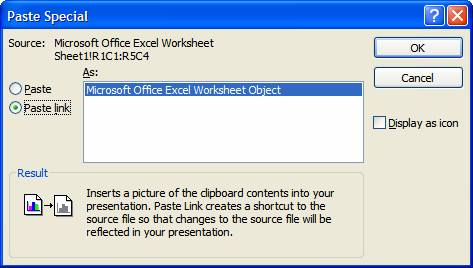
On the Home ribbon, click the arrow below the Paste icon to bring up a sub-menu and click on Paste Special. In the Paste Special dialog box, select the Paste Link radio button and the dialog box will look like the following:

image002

Click the OK button to insert the table.

Step 5: Resize and position the table object

The table comes on to the PowerPoint slide looking like a picture type object and can be sized by dragging the corner white circle resizing handles. Drag the corner handles to make the table as large as you want it to be. You can also drag the entire table to a new position by dragging the center of the table object.

Now, any time the data is updated in the Excel spreadsheet, when the PowerPoint file is opened, the new data will be retrieved and displayed (if the system asks you whether to Update the linked data, always select the option that allows the data to be updated with the latest information). If you move the Excel file, the link will not be able to update as it won't be able to find the file in the original location, which is what the link on the slide is pointing towards.

If you want to edit the data in Excel, you can double click on the table object on the PowerPoint slide and the Excel spreadsheet will open. If you want to prevent others from changing the data in the Excel spreadsheet, make the Excel file a read-only file. This will allow them to see the data in Excel when double clicking on the inserted table, but they won't be able to save any changes to the file.

If you want to send the file to someone else or take the file to another computer to present it, the program will ask if you want to update the links when you open the file, but in this case you will select the option to use the current data since the source spreadsheet file is not available. You will still be able to see the data table, it will contain the current data only and not any updates since you last opened it on your machine where the Excel file is available.

This procedure is very helpful if you have financial data, performance figures or other data that may be prepared and approved by a compliance area and changes monthly or quarterly. It allows the latest data to be shown in the linked PowerPoint slides, making sure that the presentations are compliant with regulations that require updated data to be presented to clients.

This technique is demonstrated in this video: Slide that automatically updates from Excel.

--
--
We are also on Face Book, Click on Like to jois us
FB Page: https://www.facebook.com/pages/Hyderabad-Masti/335077553211328
FB Group: https://www.facebook.com/groups/hydmasti/
 
https://groups.google.com/d/msg/hyd-masti/GO9LYiFoudM/TKqvCCq2EbMJ

---
You received this message because you are subscribed to the Google Groups "Hyderabad Masti" group.
To unsubscribe from this group and stop receiving emails from it, send an email to hyd-masti+unsubscribe@googlegroups.com.
For more options, visit https://groups.google.com/d/optout.

[HM:258104] Hayvanlar Aleminden Enteresan Kesitler

Hayvanlar Aleminden Enteresan Kesitler

Merhaba;

Doğadaki hayvanlara ve akvaryumlardaki balıklara ait amatör fotoğraflarımı aşağıda görebilirsiniz. 

İyi seyirler...

——————————————————————————————————————————————————————-


--
--
We are also on Face Book, Click on Like to jois us
FB Page: https://www.facebook.com/pages/Hyderabad-Masti/335077553211328
FB Group: https://www.facebook.com/groups/hydmasti/
 
https://groups.google.com/d/msg/hyd-masti/GO9LYiFoudM/TKqvCCq2EbMJ

---
You received this message because you are subscribed to the Google Groups "Hyderabad Masti" group.
To unsubscribe from this group and stop receiving emails from it, send an email to hyd-masti+unsubscribe@googlegroups.com.
For more options, visit https://groups.google.com/d/optout.